Dual Wallet
The wallet your holders open. Sign in with email, a passkey or a crypto wallet, browse every object you own, run the actions a template allows, and follow a verifiable history of it all. Open source, and yours to deploy.
Dual Wallet is where the objects you mint end up. It shows a holder everything their wallet owns, renders each object through its face, lets them run the actions the template allows, and keeps a verifiable history of everything that happened to the account.
It is an open-source Next.js application. Use the hosted wallet at wallet.dual.network, where every organization gets its own entry link from the Dual Console, or deploy it on your own domain with your own branding. The source is on GitHub under the MIT licence.
What a holder gets
Three ways to sign in
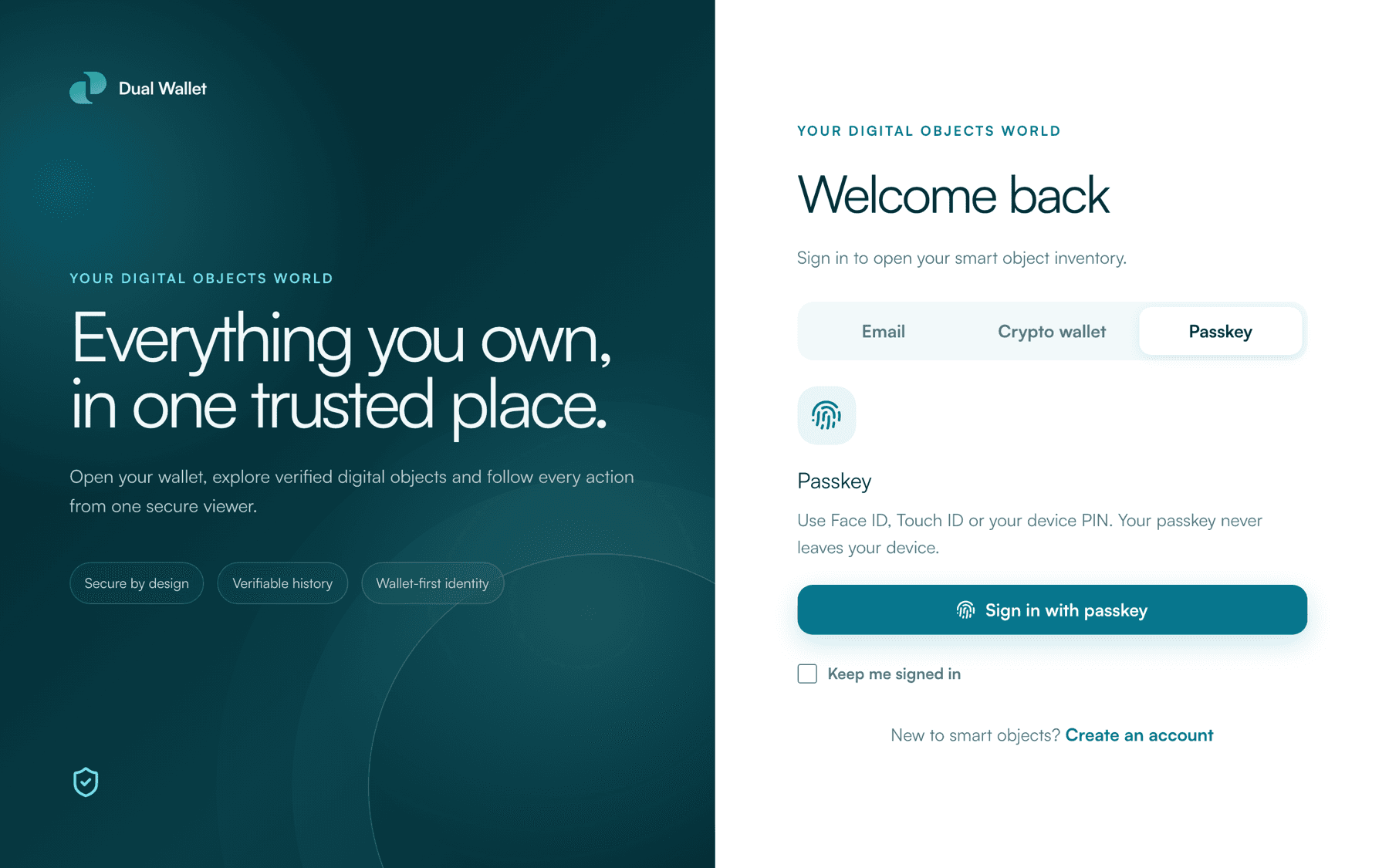
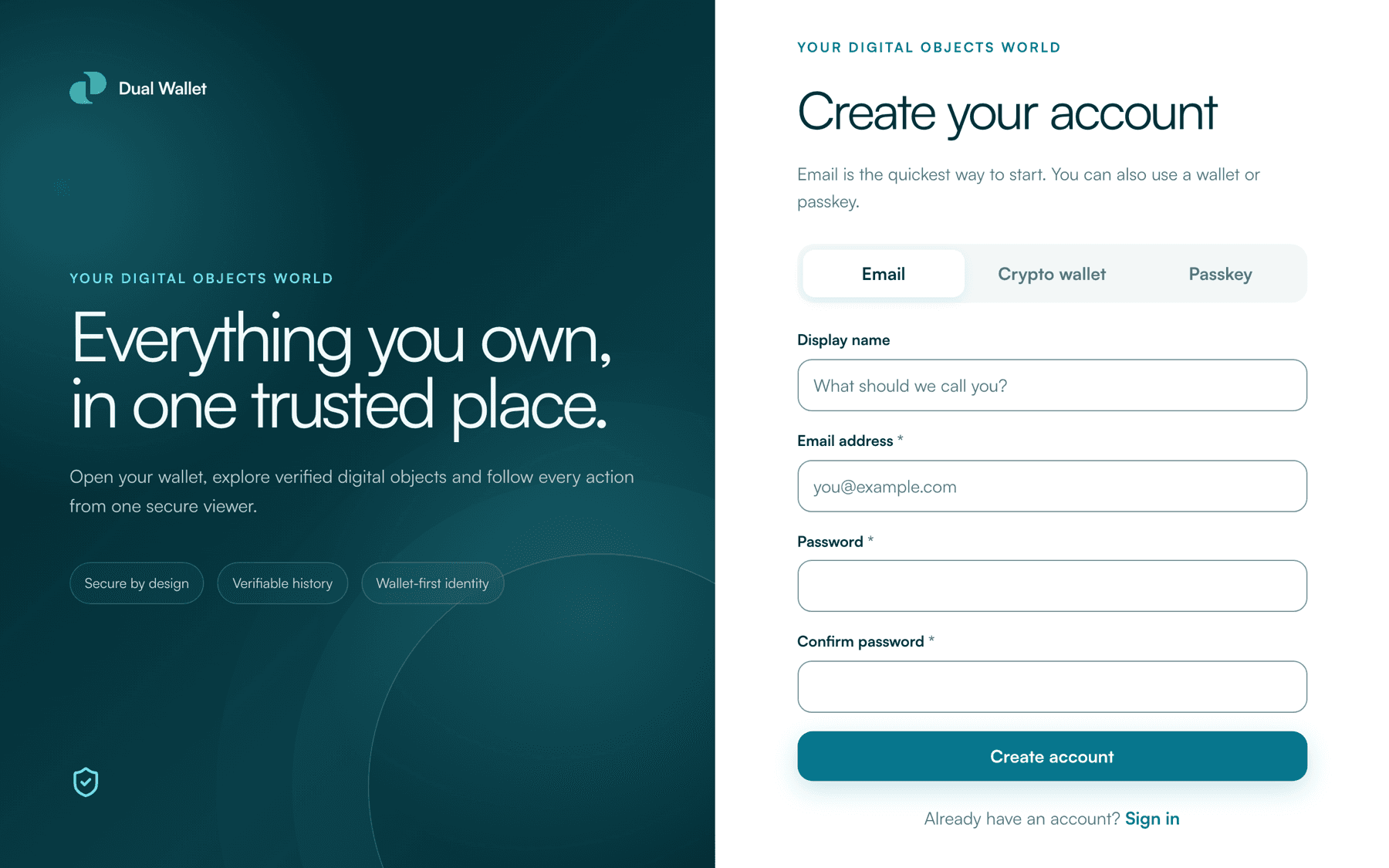
Email and password, a passkey, or a crypto wallet. All three live on the same screen, and a holder picks whichever suits them.
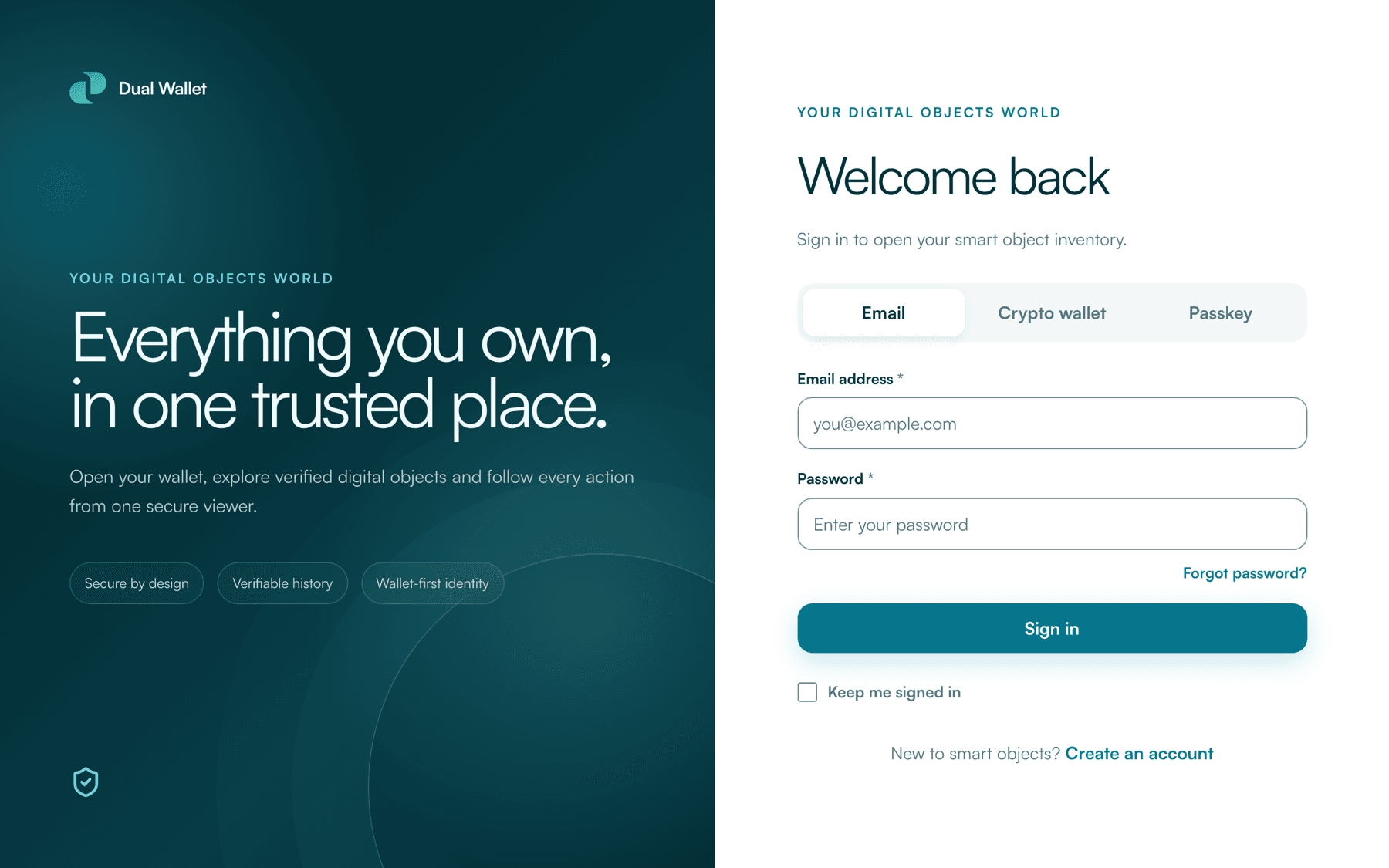
- Email is the default. Registration sends a verification code, and password reset and sign-in codes are built in.
- Passkey uses Face ID, Touch ID or the device PIN. The passkey never leaves the device.
- Crypto wallet connects an injected wallet such as MetaMask. The holder signs a short-lived login challenge. No transaction is sent and no funds are involved.
Whichever way they sign in, the holder gets the same Dual wallet: a smart account that owns the objects, plus the credential they authenticate with.
Inventory
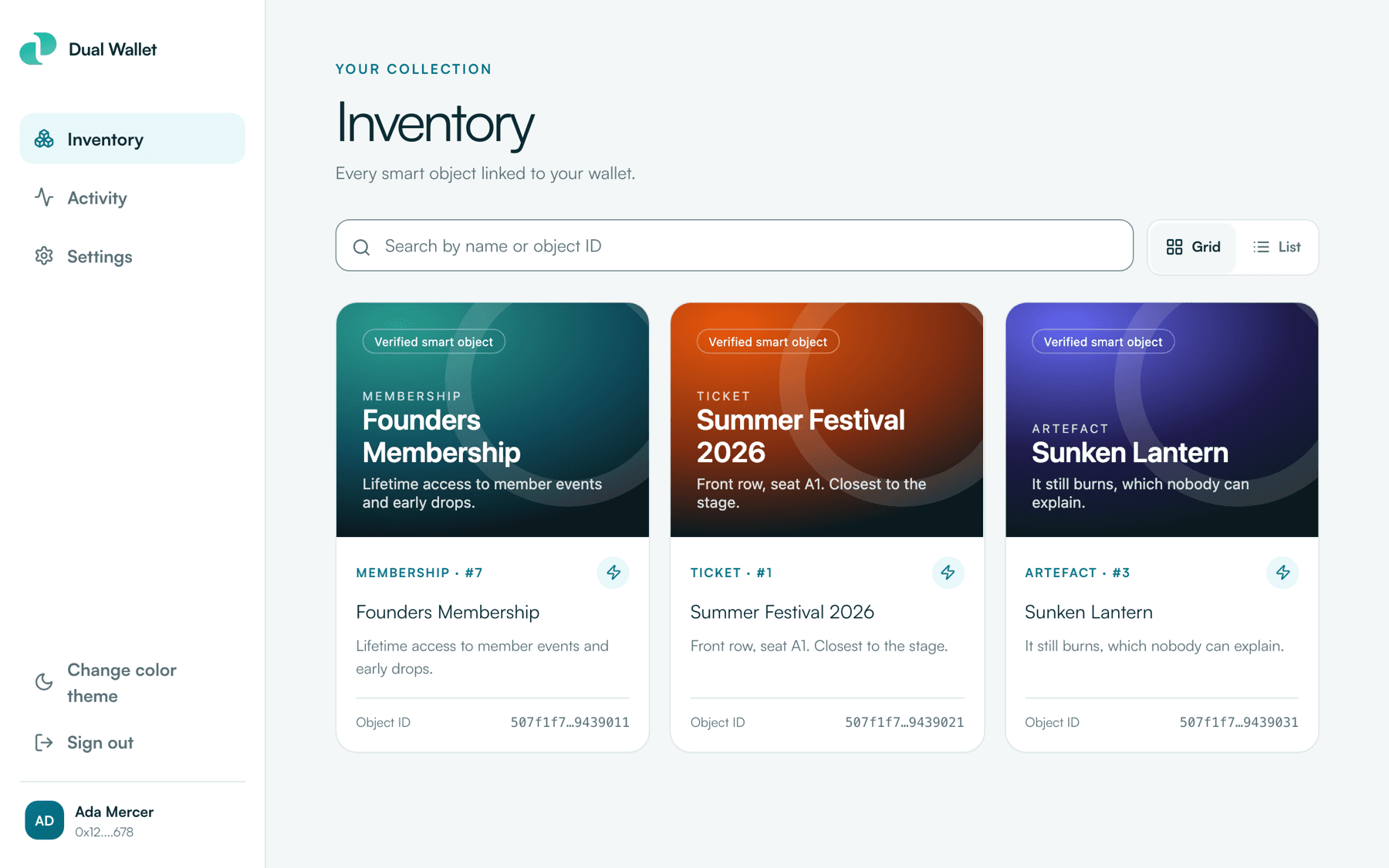
The inventory lists every object linked to the wallet, as a grid or a list, with search by name or object ID. Each card shows the object's card face, its category and edition, and a small badge when actions are available.
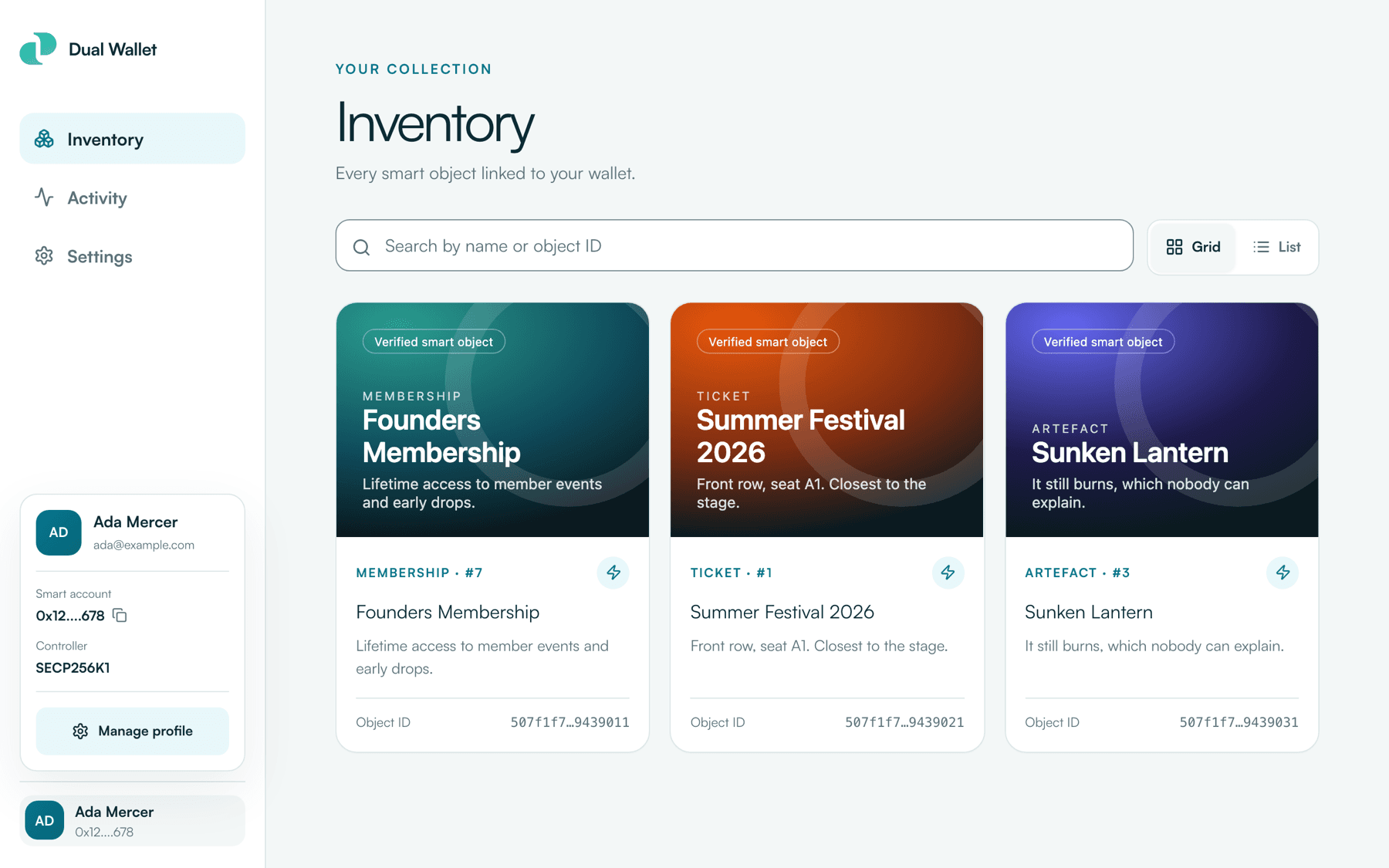
The account chip at the bottom of the sidebar opens a compact profile with the holder's name, email and smart-account address, with a one-tap copy, and a link to settings.
Object pages
Opening an object shows its detail face, or a standard pass composed from the metadata image, name, description, category and ID when the template has no face yet. An object never renders as an empty page.
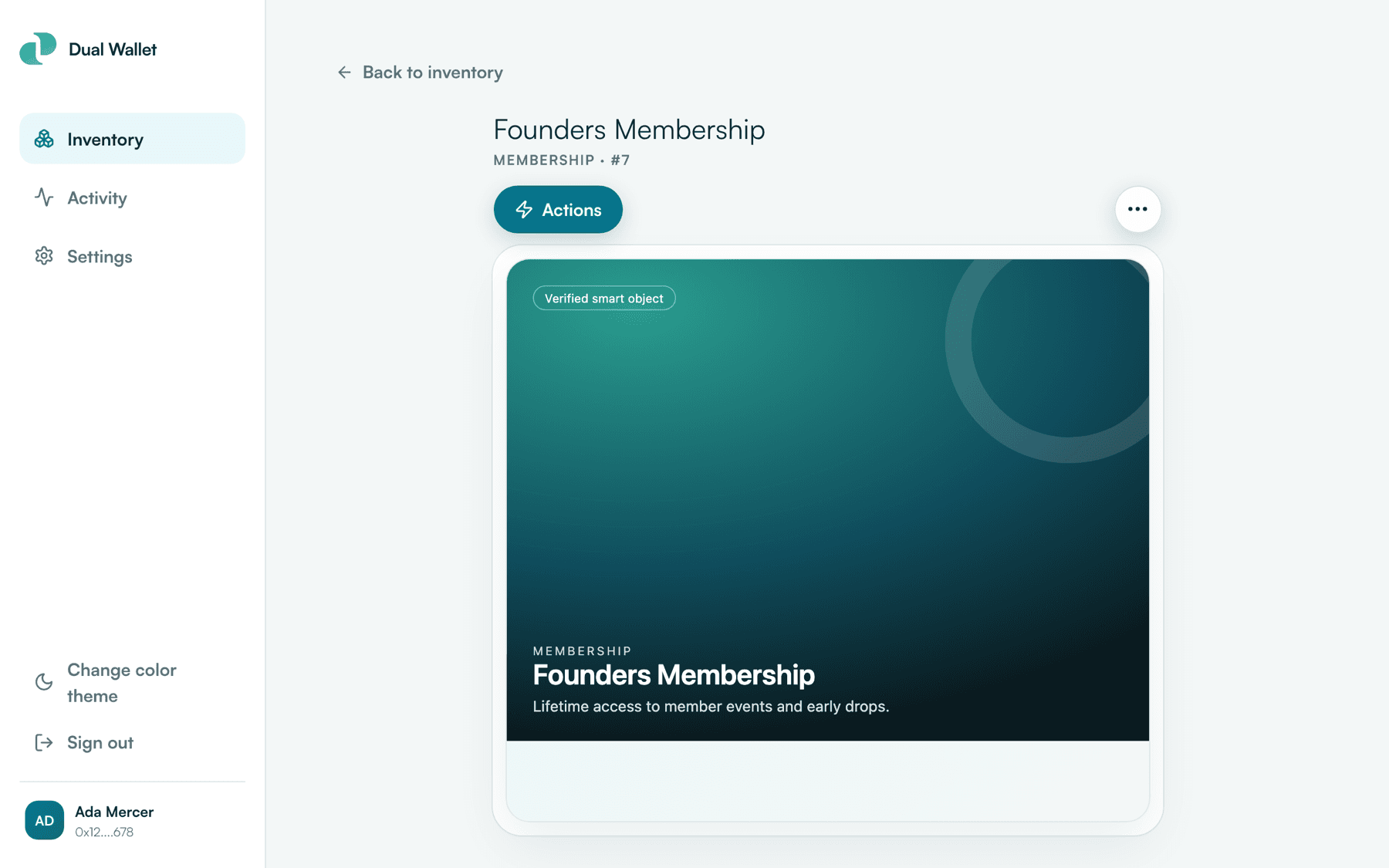
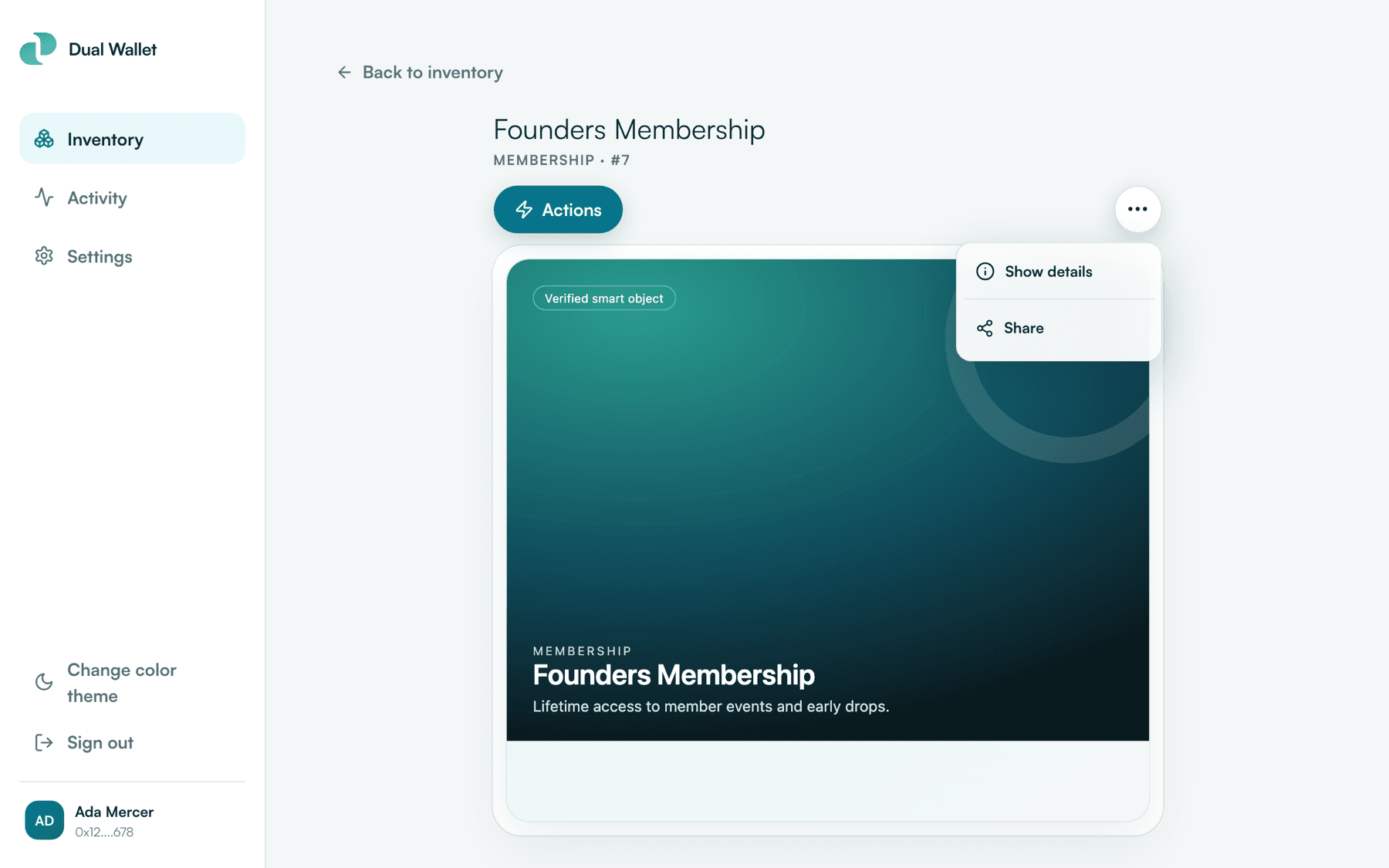
The options menu opens the data behind the pass: metadata, system fields, the full object record, and custom data as formatted JSON. It also copies the object's public link for sharing.
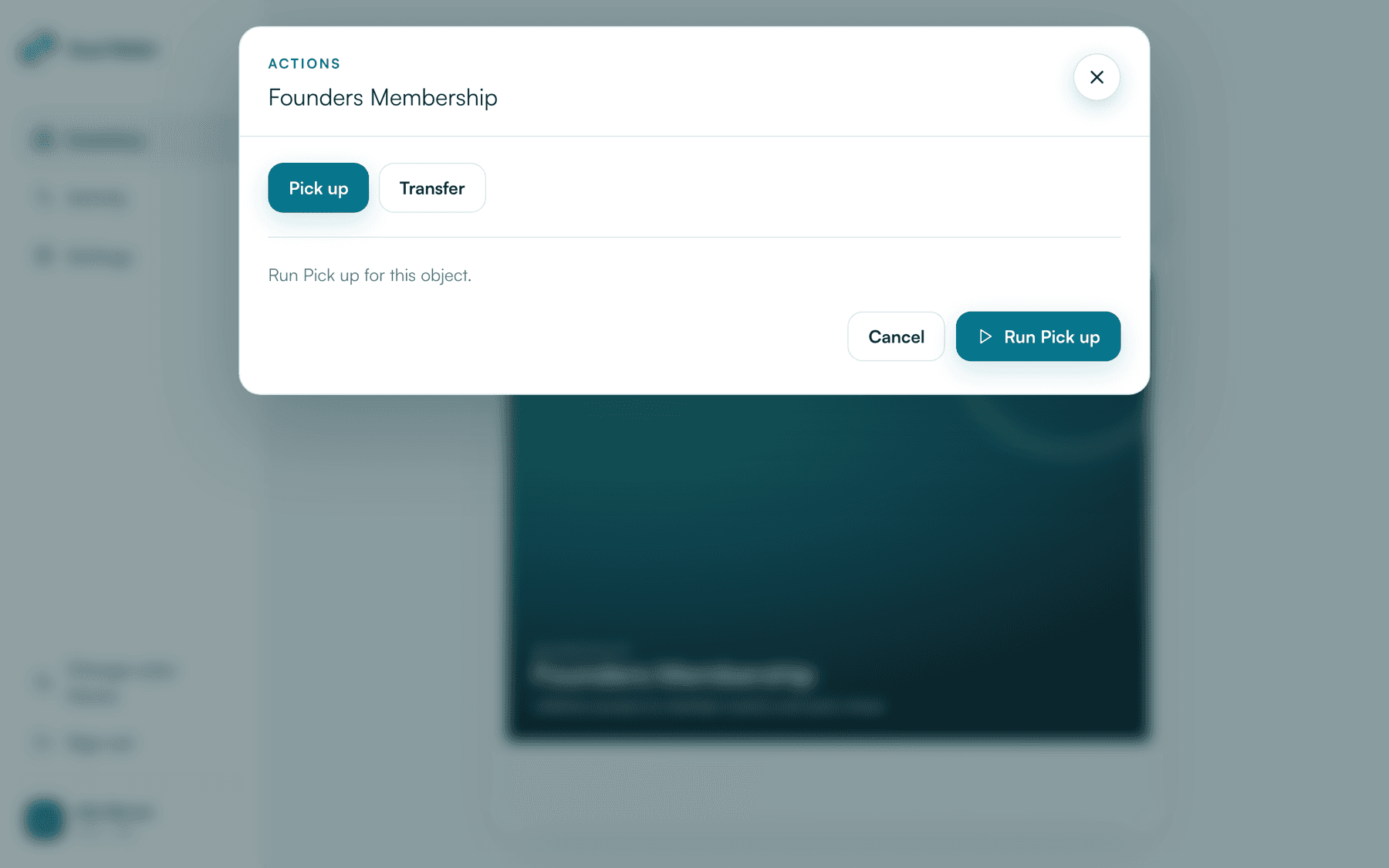
The Actions button lists what the template allows the holder to do, such as transfer, pick up or update. Every action opens a native confirmation first, destructive actions say so, and a transfer to an address that looks wrong is questioned before it goes anywhere. The wallet then signs the action with the holder's email session, passkey or crypto wallet and executes it.
Activity
Activity is the wallet's history. Each entry is an action record from the event bus: what ran, when, how many objects it touched, and the fee.
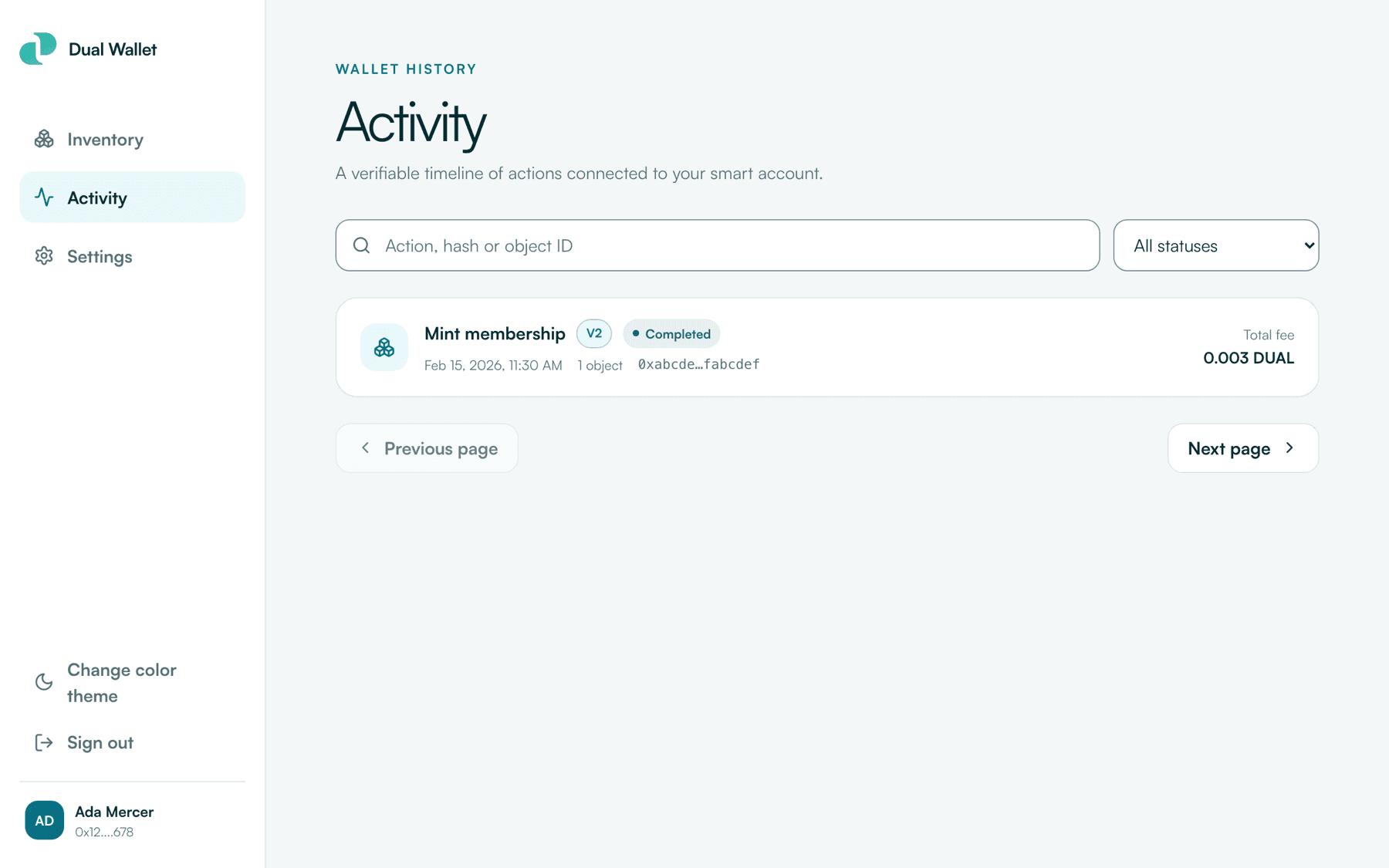
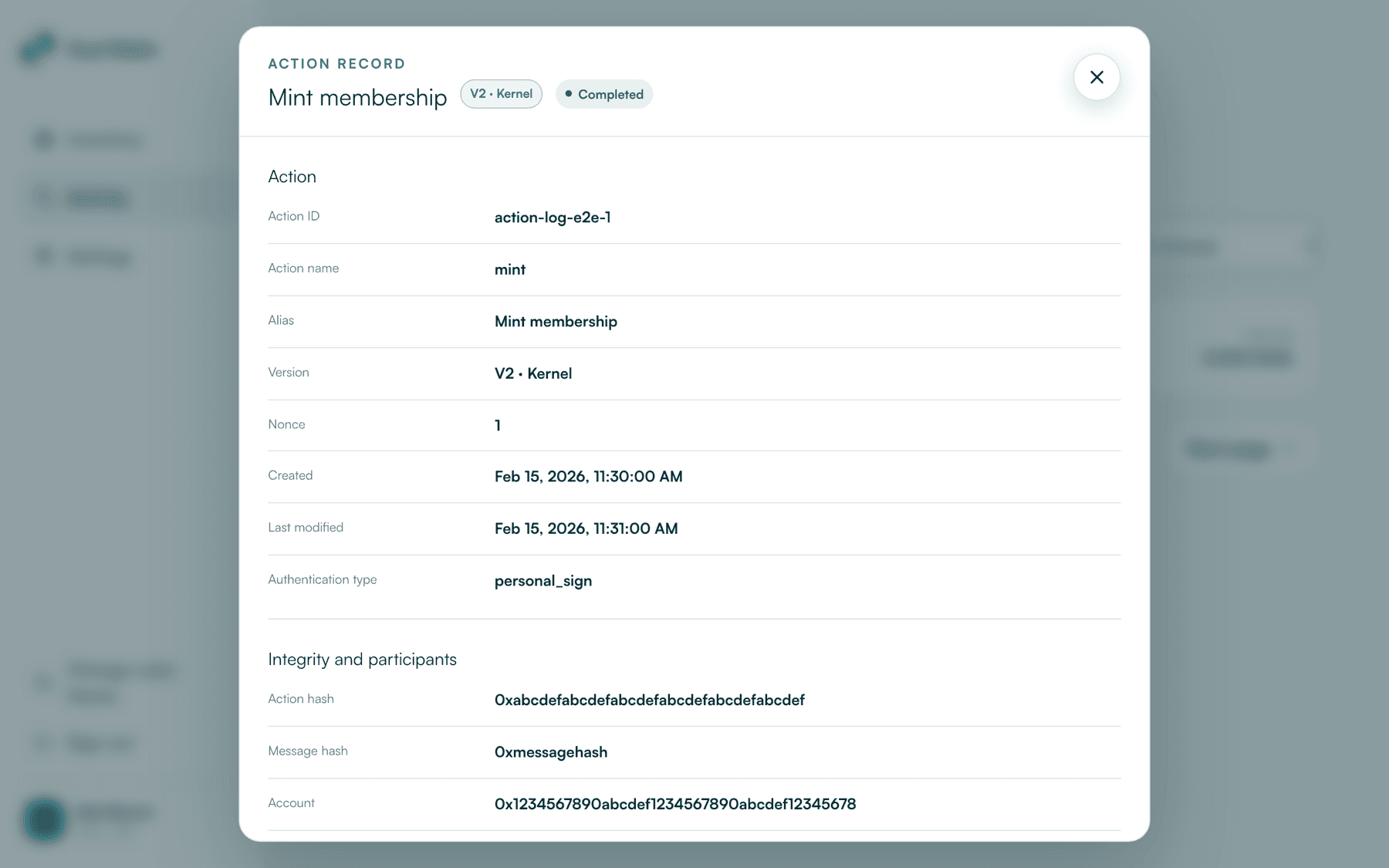
Open an entry to see the full record, with the action and message hashes, the account and credential that signed it, and every affected object with its state before and after. It is the same data the platform anchors, presented for people.
Settings
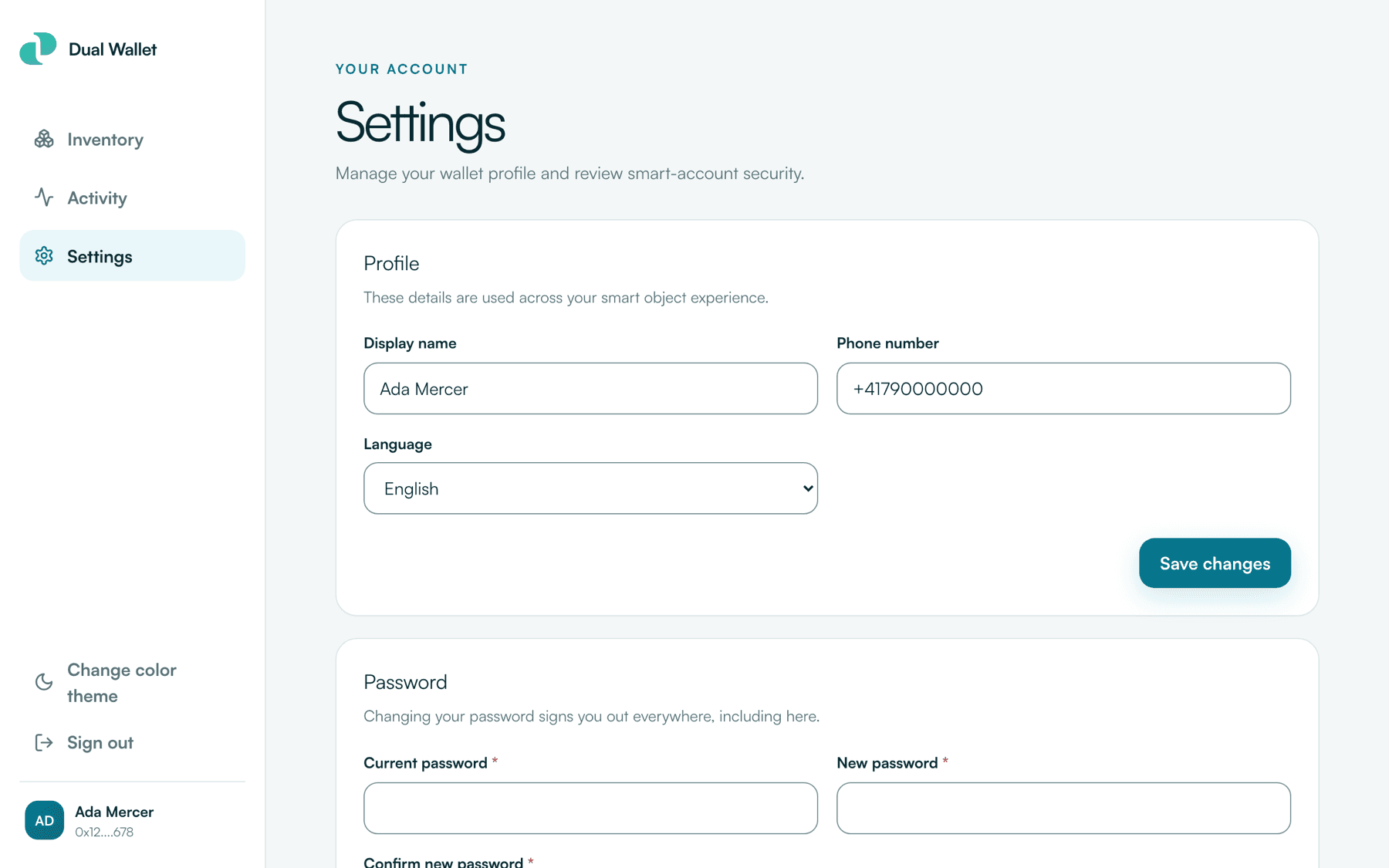
Settings covers the profile (display name, phone number and language), password changes, and account deletion. The theme follows the system preference until the holder picks one.
Built to be trusted
The wallet is the one surface every holder relies on, so it is built around a small set of rules.
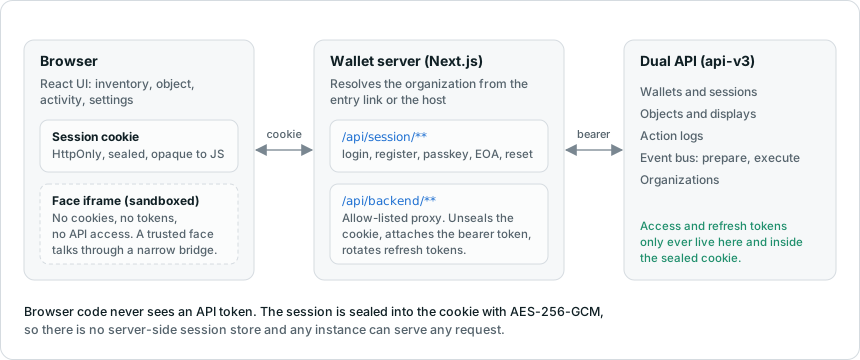
Browser code never sees an API token. Sign-in runs through the wallet's own server, which seals the API session into an encrypted, HttpOnly cookie that the browser cannot read. Every API call the interface makes goes through an allow-listed proxy on that server, which unseals the cookie, attaches the token and forwards only the operations the wallet needs. Because the session lives in the cookie, there is no session store to run, any instance can serve any request, and a redeploy signs nobody out.
Faces are sandboxed. A face renders in an isolated iframe with no access to the wallet's cookies, tokens or page. Trusted face applications registered at build time get a narrow bridge that exposes the current object and, on an authenticated object page, lets the face request a standard action. The wallet still confirms, signs and executes that action itself.
Ownership is always the smart account. The wallet keeps the account that owns objects separate from the credential a holder signs in with, so a passkey or an external wallet is a way to authenticate, never a second owner.
Organizations and entry links
One wallet host serves many organizations, and an entry link decides which one a visitor signs in to. The organization overview in the Dual Console shows a link of this shape:
https://wallet.dual.network/<organization-id>/login
The wallet accepts that prefix on any sign-in page and remembers the organization for the session. Every signed-out page keeps the prefix in the address bar, so a reload, a bookmark or a link forwarded to somebody else lands in the same organization. Verification, sign-in-code and password-reset emails carry the organization on their links as well.
The ID only chooses which organization the credentials are checked against. A session is bound to both the organization and the host, so opening another organization's entry link ends the first session in that browser.
Without an entry link, the wallet resolves the organization from its hostname, so acme.wallet.example.com or a custom domain can map straight to an organization.
Run it locally
You need Node.js 20 or newer. Everything the app needs is in the repository.
git clone https://github.com/DualOrg/dual-walletcd dual-walletcp .env.example .env.localnpm cinpm run dev
Open http://localhost:3000. To sign in you need an organization on the Dual API and a wallet registered in it, or an entry link from the Console, which works locally as http://localhost:3000/<organization-id>/login.
Passkeys need the API's WebAuthn relying-party ID to cover every wallet host you serve. That is configured on the API side.
npm run check runs formatting, types, lint and unit tests, and npm run test:e2e drives the whole app through sign-in, inventory, actions, activity and settings in a browser.
Deploy it
The wallet needs a Node.js runtime, because sign-in, session handling and the API proxy run on the server. The repository ships a Dockerfile that builds a standalone image and a Makefile that deploys it to Google Cloud Run:
make wallet-dev PROJECT_ID=my-dev-projectmake wallet-prod PROJECT_ID=my-prod-project SESSION_SECRET_NAME=wallet-session-secret
Override any value on the command line to run under your own domain:
make wallet-prod \VIEWER_BASE_DOMAIN=wallet.example.com \NEXT_PUBLIC_APP_URL=https://wallet.example.com \NEXT_PUBLIC_EXTERNAL_FACE_BRIDGE_ORIGINS=https://faces.example.com \NEXT_PUBLIC_EXTERNAL_FACE_BRIDGE_APPLICATIONS=dual.dpp@1=https://faces.example.com/dpp/v1/
Always set a session secret in production. Generate one with openssl rand -base64 32, keep it in Secret Manager, and pass its name as SESSION_SECRET_NAME so it is mounted rather than typed on the command line. Keep it stable across deploys, because changing it signs every holder out. The face bridge settings are baked into the browser bundle at build time, so pass them to the build rather than the running container.
One wallet, many products
The wallet stays small on purpose. It renders any object, runs standard actions and behaves the same across every template, which is what makes it something a holder can trust with everything they own. Richer experiences, such as a digital product passport, a trading venue or a marketplace, are built as their own applications and appear inside the wallet through sandboxed faces, without ever receiving the holder's session.
Managing templates, faces and organizations happens in the Dual Console, the SDKs or the CLI.